
01
Find your Mac automatically
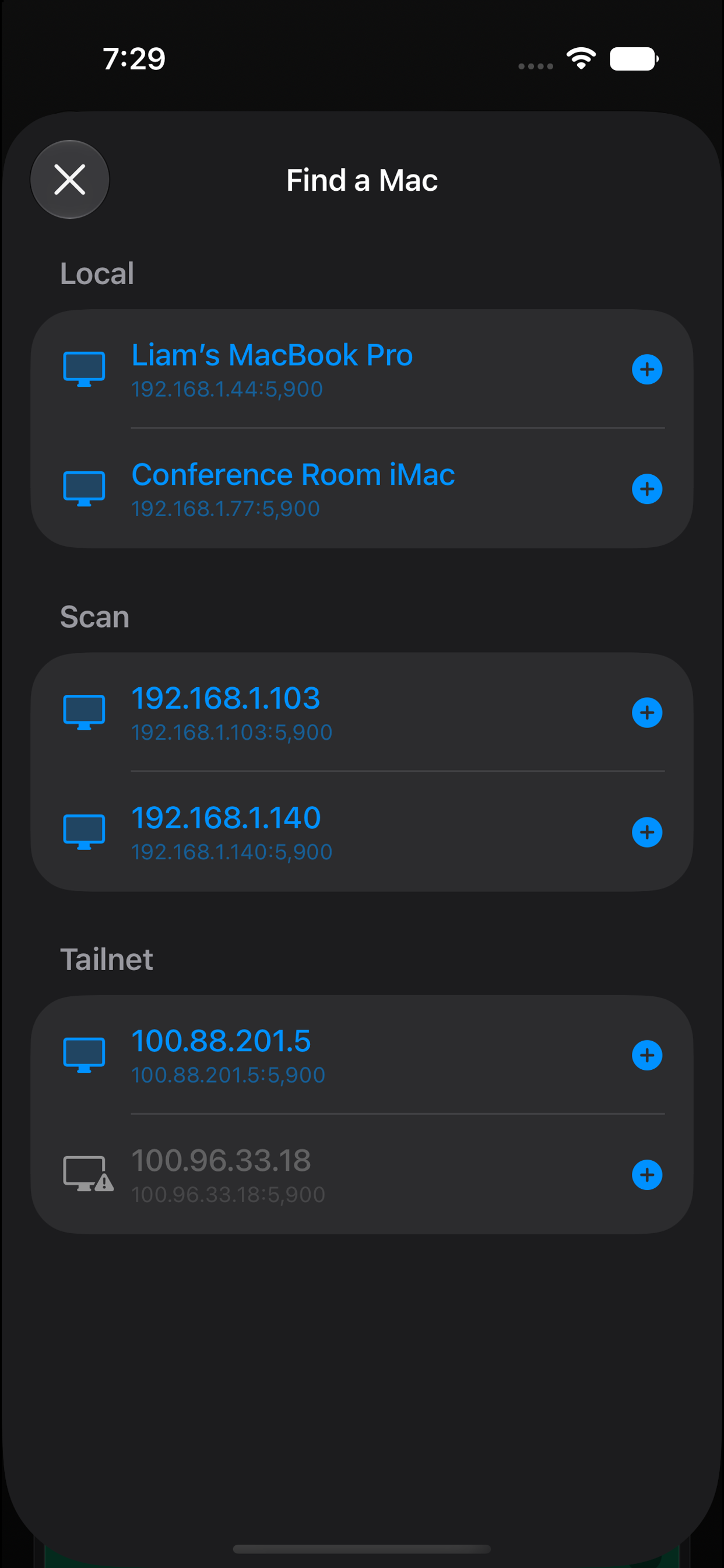
Bonjour discovery, a fast local-network scan, and reachability checks for your Tailscale machines — tap a result and you're connected, no IP addresses to memorize.
Your Mac, right where your iPad is
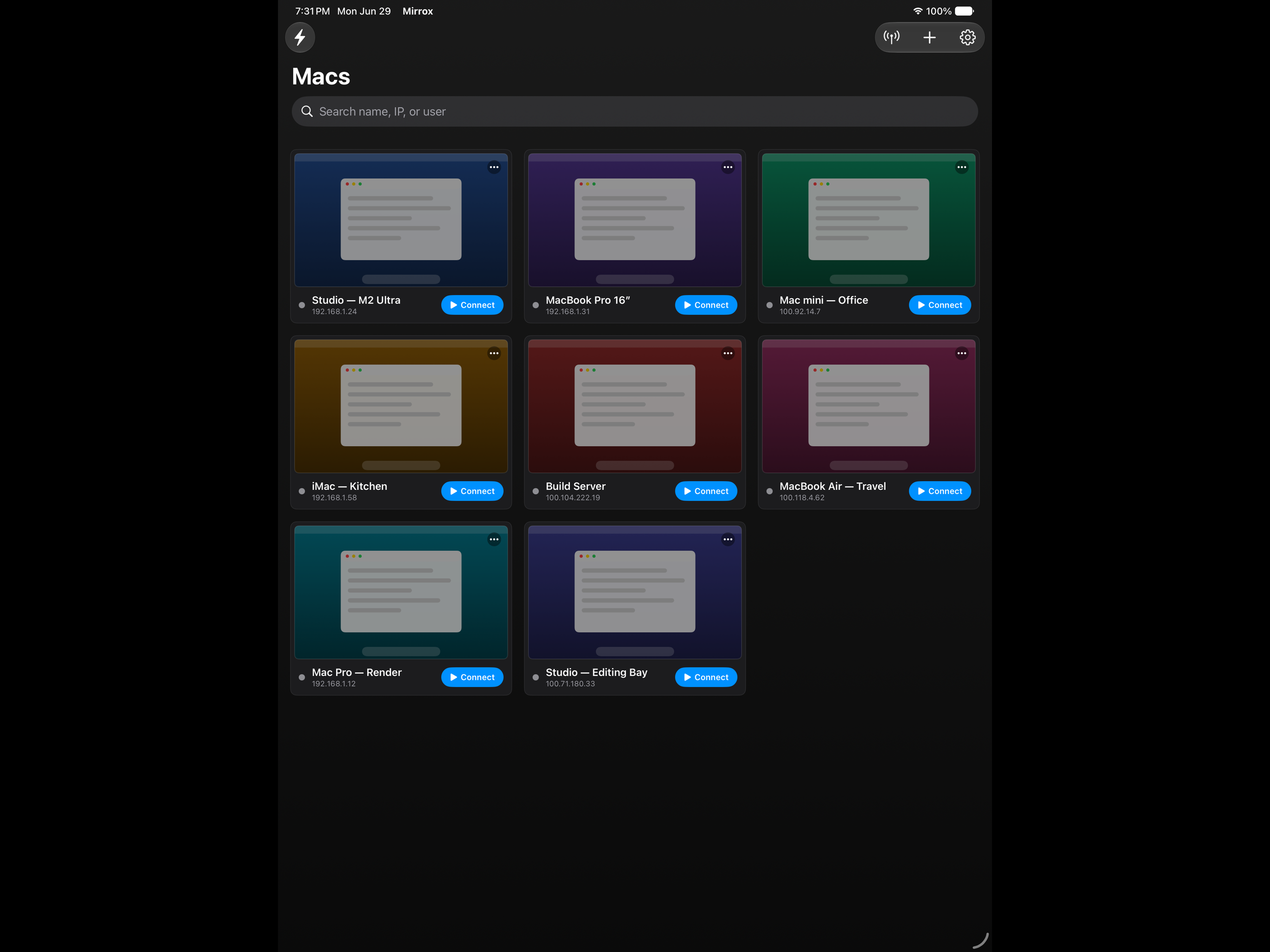
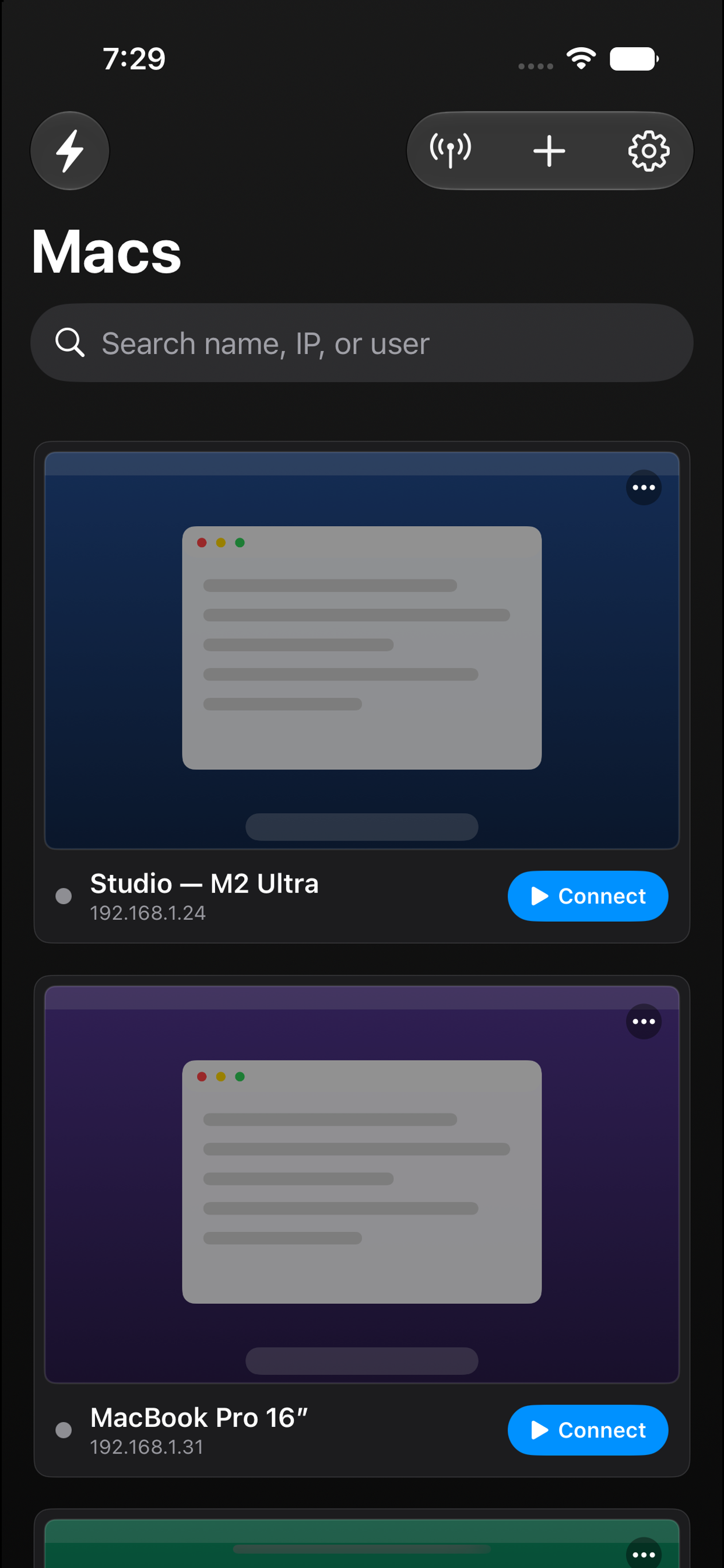
Mirrox connects to your Mac's built-in Screen Sharing with a 100% Apple-native VNC client — built for touch, keyboard, haptics, zoom, and Picture in Picture. No accounts, no relay servers, no desktop agent.
Fast, native, focused
Bonjour discovery, a fast local-network scan, and reachability checks for your Tailscale machines — tap a result and you're connected, no IP addresses to memorize.
Trackpad mode with relative movement, tap to click, two-finger right-click and scroll, plus crisp haptics on every click, scroll notch, and screen edge.
Pinch to inspect dense screens and two-finger pan around the viewport, or double-tap a macOS window for smart zoom straight to it.
Move a live remote screen into system Picture in Picture and keep your Mac visible while you use other iPad apps.
Connect several Macs and three-finger swipe between live sessions like desktop Spaces, with full keyboard support including ⌘ / ⌥ / ⌃ and arrow keys.
Your machine list follows you across devices through your own private iCloud. Passwords stay on-device — no middleman servers.
A look inside
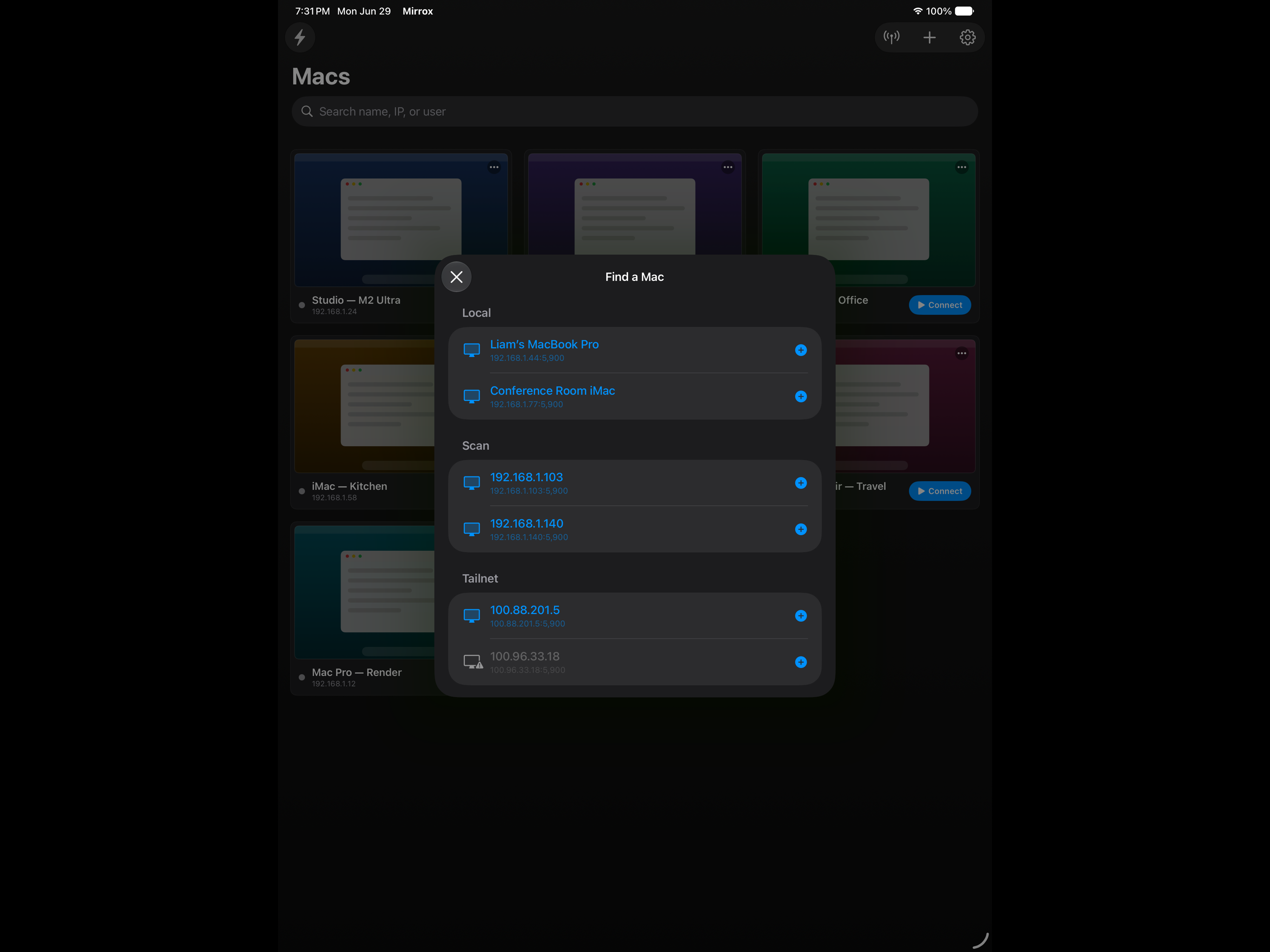
Step 1 of 4
Open Mirrox and find Macs running Screen Sharing through Bonjour, a local-network scan, and Tailscale reachability checks.
How it works
Turn on Screen Sharing in System Settings → General → Sharing on your Mac and set a VNC password for viewers.
Pick a discovered Mac or add a host manually, then connect over your local network or Tailscale.
Use touch, gestures, keyboard, zoom, haptics, and PiP to work from wherever your iPad is.
Private by design
Mirrox talks to your Mac's built-in Screen Sharing over VNC. Your screen never leaves your network and never passes through a vendor relay.
100% Apple-native SwiftUI, with the entire VNC protocol implemented in Swift — no third-party libraries and no sign-up.
Saved machine data and passwords live on-device, syncing only through your own private iCloud account.
Mirrox is built for iPad, iPhone, and Mac (Catalyst), with the speed and restraint of an Apple-native utility.

We're here to help
Questions, feedback, or a bug to report? Send us a note and we'll get back to you, usually within one business day.
Submitting opens your email app with the message ready to send. Please don't include VNC passwords or sensitive screen contents.